
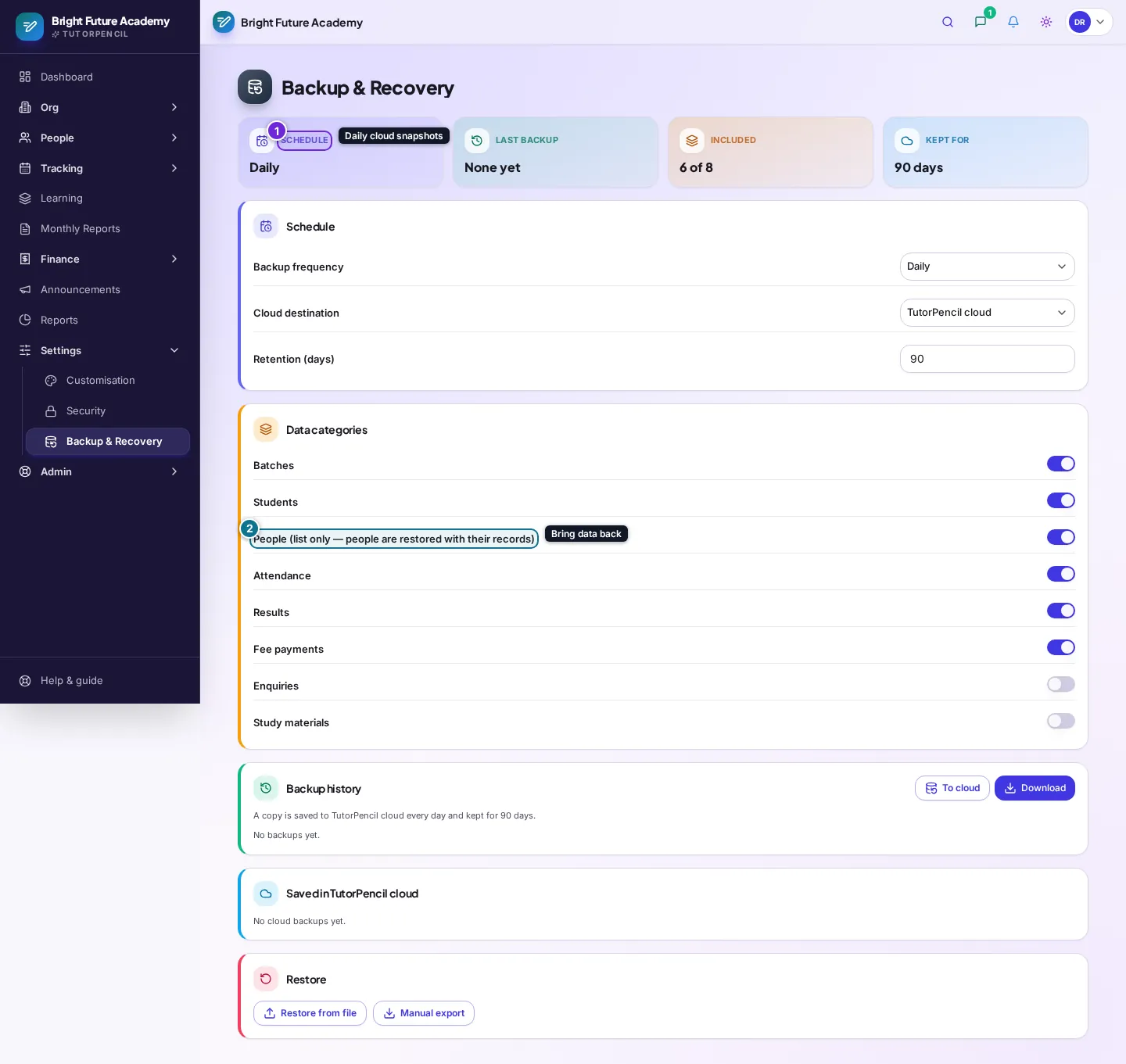
- Open Settings → Backup & Recovery → Schedule.
- Choose the Backup frequency (Daily, Weekly or Monthly), the Cloud destination (TutorPencil cloud or Download only), Retention (days) and the Data categories to include. Save.
- For a copy right now, use Manual export → Download (to your computer) or To cloud.
How it works
Backup & Recovery makes copies of your records — batches, students, people, attendance, results, fee payments, enquiries and study materials. Copies can be downloaded as a file or kept in TutorPencil cloud. Backup files are named after your institute and the date, for example Bright_Future_Academy_2026-11-25.json.
Daily use
- Backup history lists each copy with its time and what's included. Download any cloud copy from there.
- Restore (or Restore from file for a downloaded copy) brings records back. You're asked to confirm: Records deleted since it was made are added back to your institute.
Troubleshooting & FAQ
"Downloading data is switched off for staff" — the owner can switch on Allow data export by staff in Settings → Security, or download it themselves. I deleted a student by mistake — restore the latest backup from before the deletion; records deleted since then are added back.
Related pages: Reports & exportsSecurity rules for your institute