
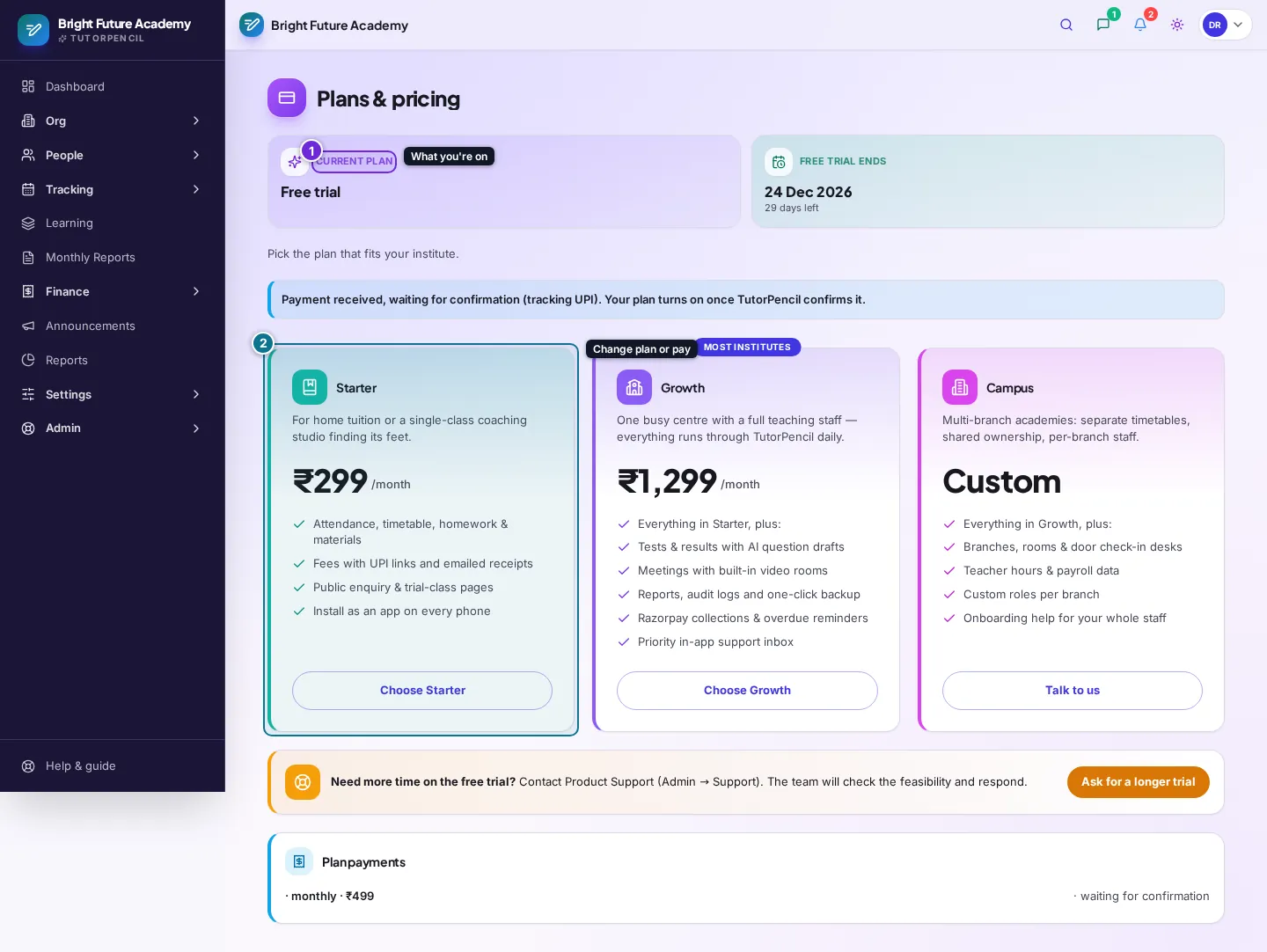
- Open Finance → Plan & Payments and choose a plan.
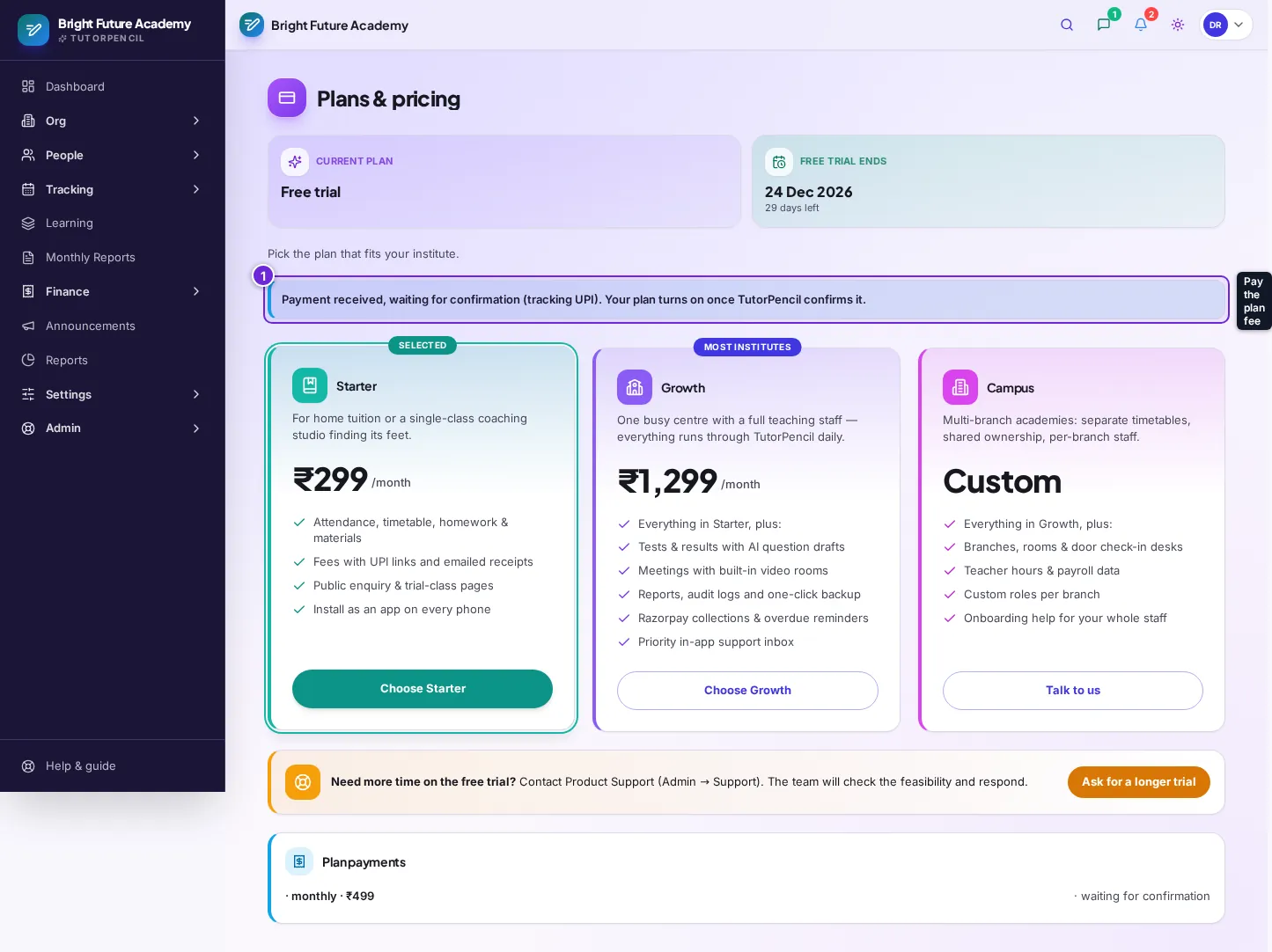
- Pay with any UPI app (on a phone this opens your UPI apps; on a computer, pay to the UPI ID shown from your phone).
- Tap I have paid, then check your UPI app said "Success" and confirm. The TutorPencil team checks the payment and turns your plan on, usually within a day. You get a notification.
How it works
New institutes start on a free trial. The Plan & Payments page shows your Current plan, when the trial or plan ends, and — if your plan has a limit — your File storage use (for example "12 / 500 MB").
Each plan card shows the price (Monthly or Annual) and a "what's included" panel listing its modules by group, its AI features, any modules you can try free, and its file storage.
Daily use
- Download invoice for any plan payment.
- Need more time on the free trial? Send a request — the team replies under Admin → Support.
Troubleshooting & FAQ
I paid but I'm still on the trial — the team confirms payments by hand, usually within a day. The payment failed — nothing was recorded. If money left your account it usually comes back within 3–5 working days; otherwise raise a ticket under Support.
Related pages: Expenses & business dashboardUPI & online payments to verify