
How it works
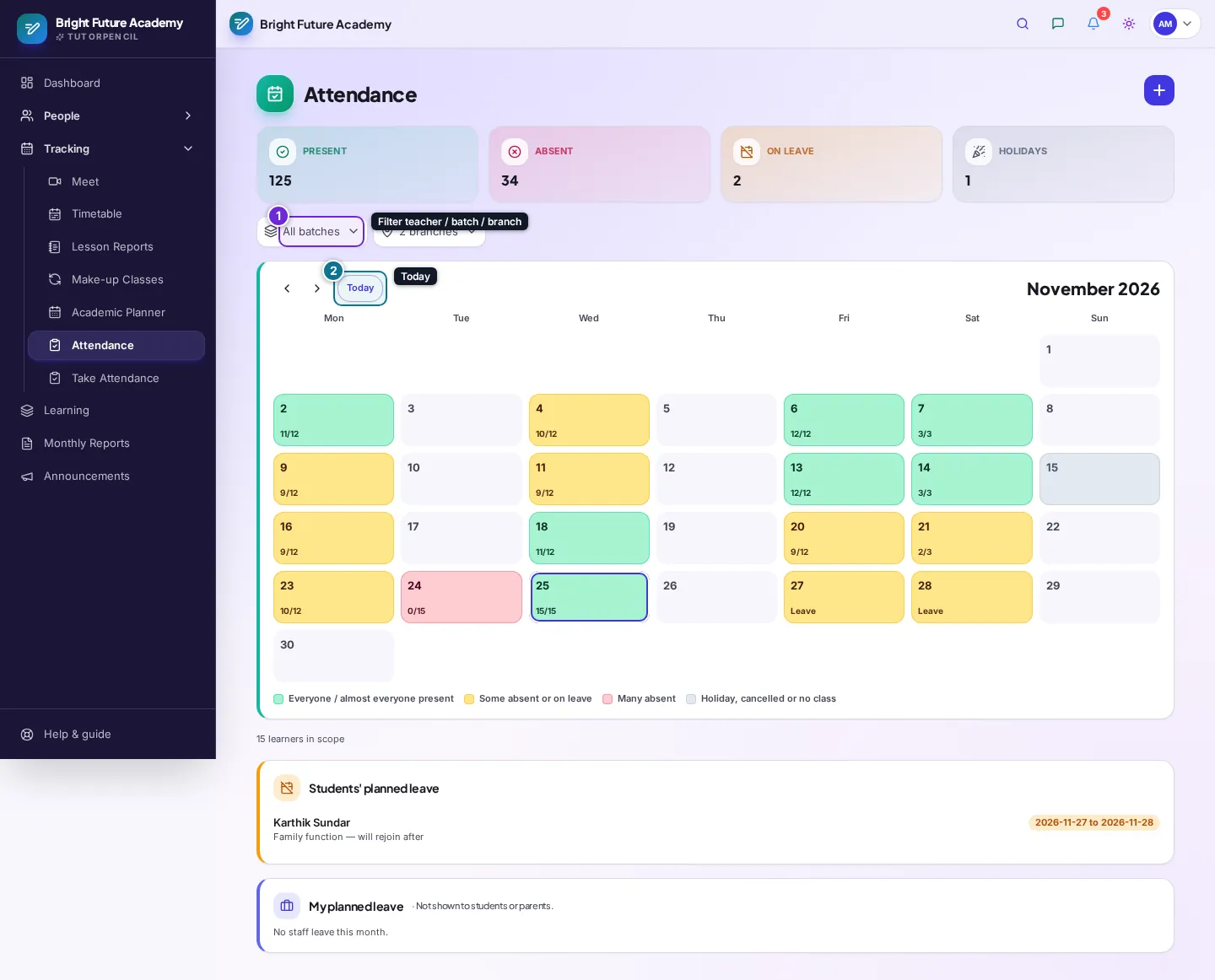
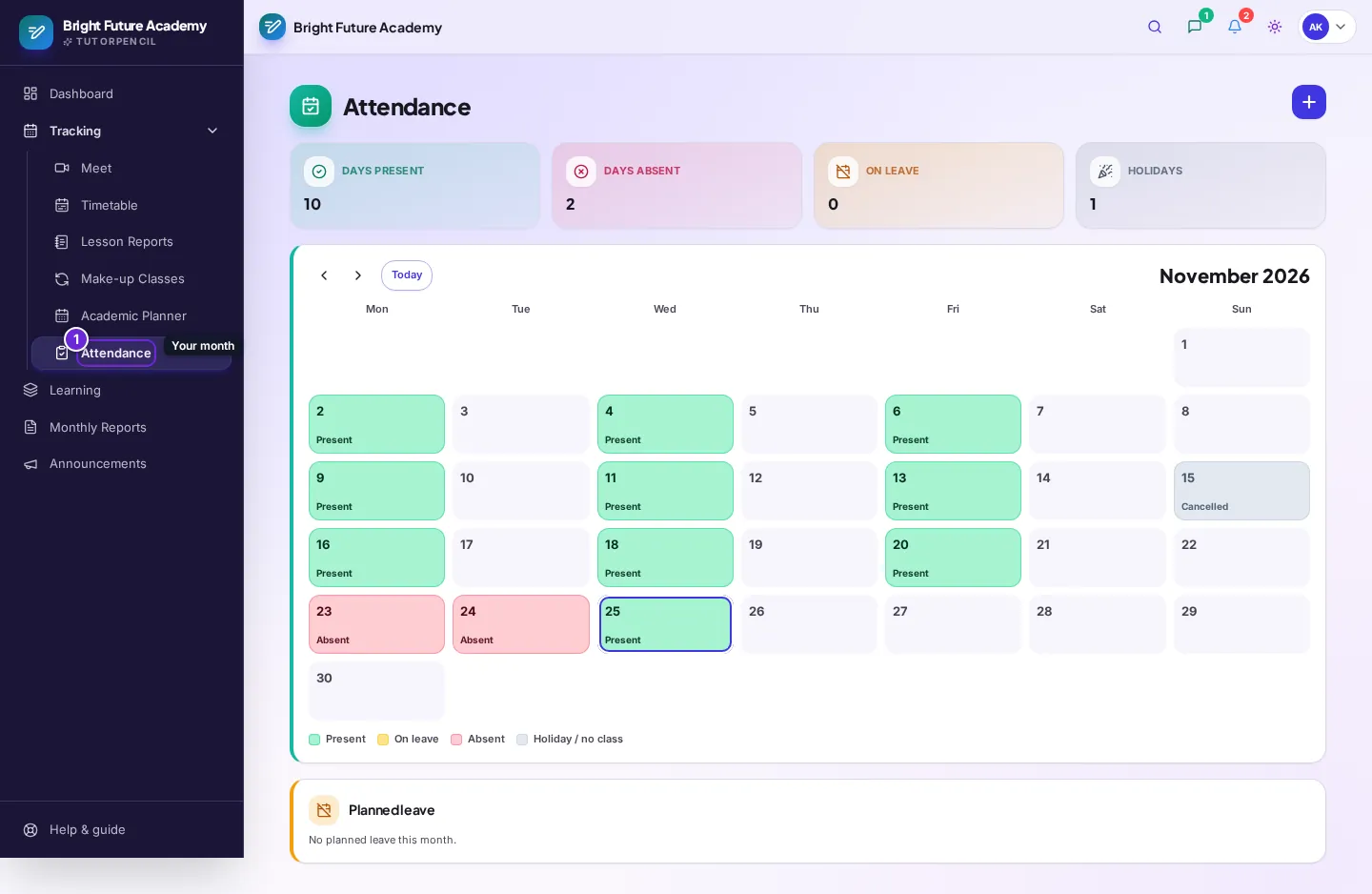
The month is shown as coloured days: green when almost everyone was present, amber when some were absent, red when many were absent, and grey for holidays or days without class. Panels beside the calendar list On leave (planned leave this month) and Holidays.
Students and parents see their own month the same way.
Daily use
- 1Filter by teacher (All teachers), batch (All batches) or branch.
- 2Move between months with Previous month / Next month, or jump back with Today.
- 3Tap a day to open its roster: who was present, late or absent. Staff can correct a mark there.
Troubleshooting & FAQ
A day shows "Nothing recorded on this day" — no attendance was taken for that day, or there was no class. A parent's percentage differs from the batch roster — the parent sees only their child's classes; the roster shows the whole batch.
Related pages: Taking attendancePlanned leaveAcademic planner & holidays