
No Zoom or Google Meet link is needed: online meetings open in TutorPencil's own video room.
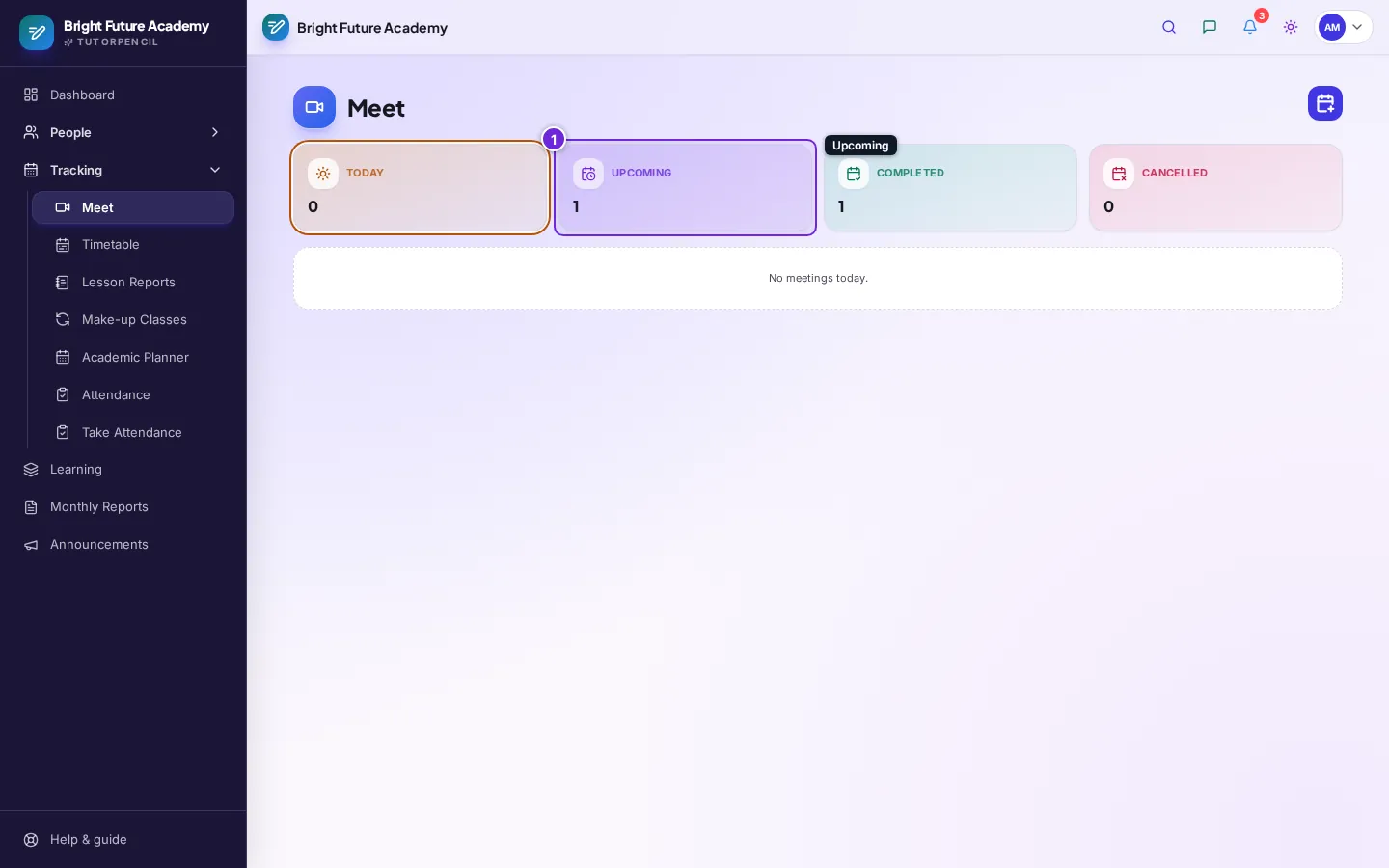
- Open Tracking → Meet and press +.
- Give a title, the type (for example parent meeting, staff meeting or online class), the mode (Online or In person), date and time, and choose who to invite. Fields with * are required.
- Choose reminders (for example 1 hour and 15 minutes before). Everyone invited is reminded in the app.
- Save. The people invited see the meeting in their Meet list and calendar.
Daily use
- From 15 minutes before the start, a Join button appears. The room opens full screen with microphone, camera, Share screen, Raise hand, chat and the people list.
- Pin any picture to the big screen; a shared screen goes there on its own.
- The host can mute everyone, lower all hands and remove someone.
- Joining marks the person as attended.
Troubleshooting & FAQ
The Join button isn't there — it appears 15 minutes before the start time. Others can't hear me — allow microphone access for TutorPencil in the browser, and check the microphone isn't muted in the room.
Related pages: AnnouncementsNotifications (the bell)Timetable