
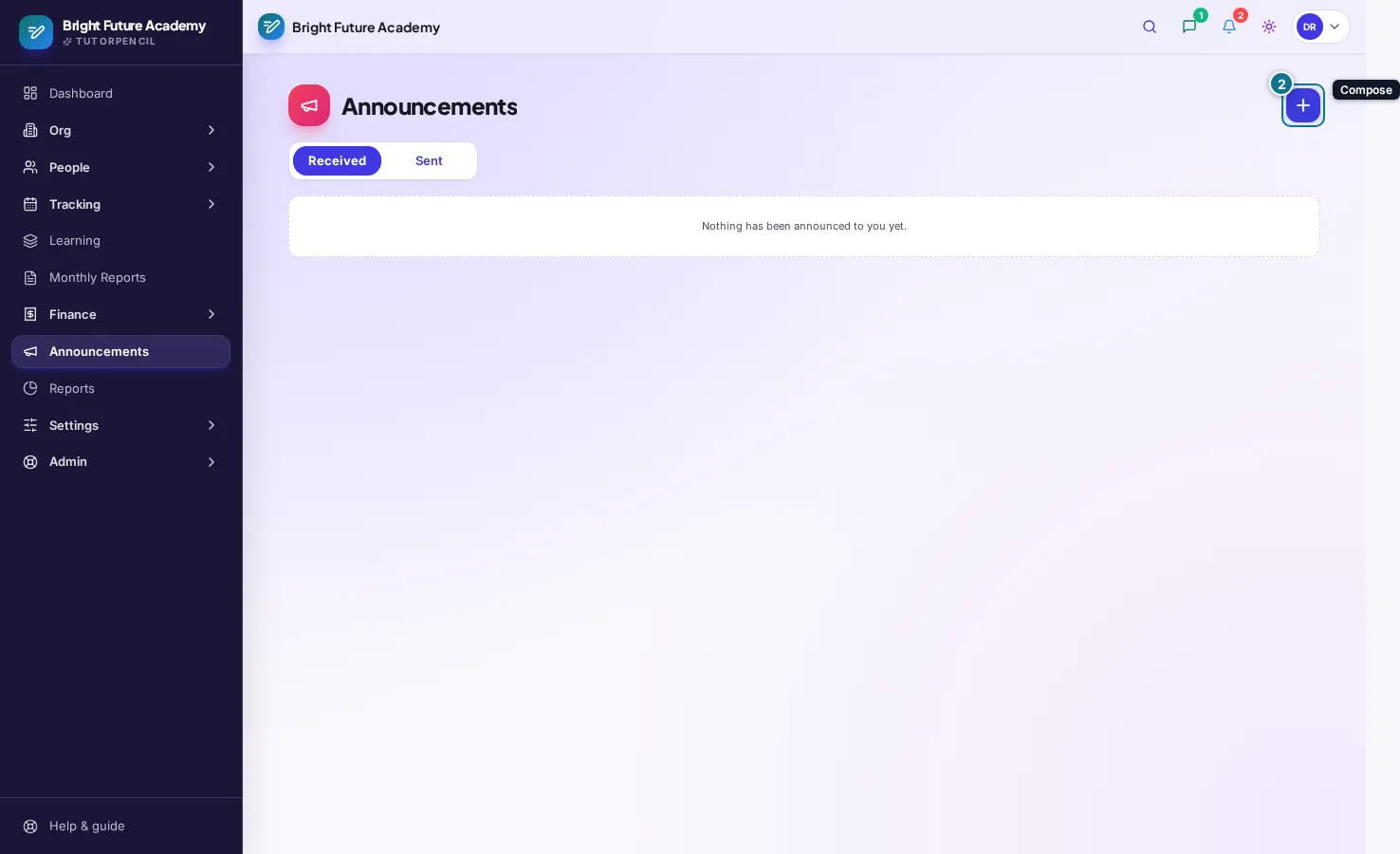
- Open Announcements and press New announcement.
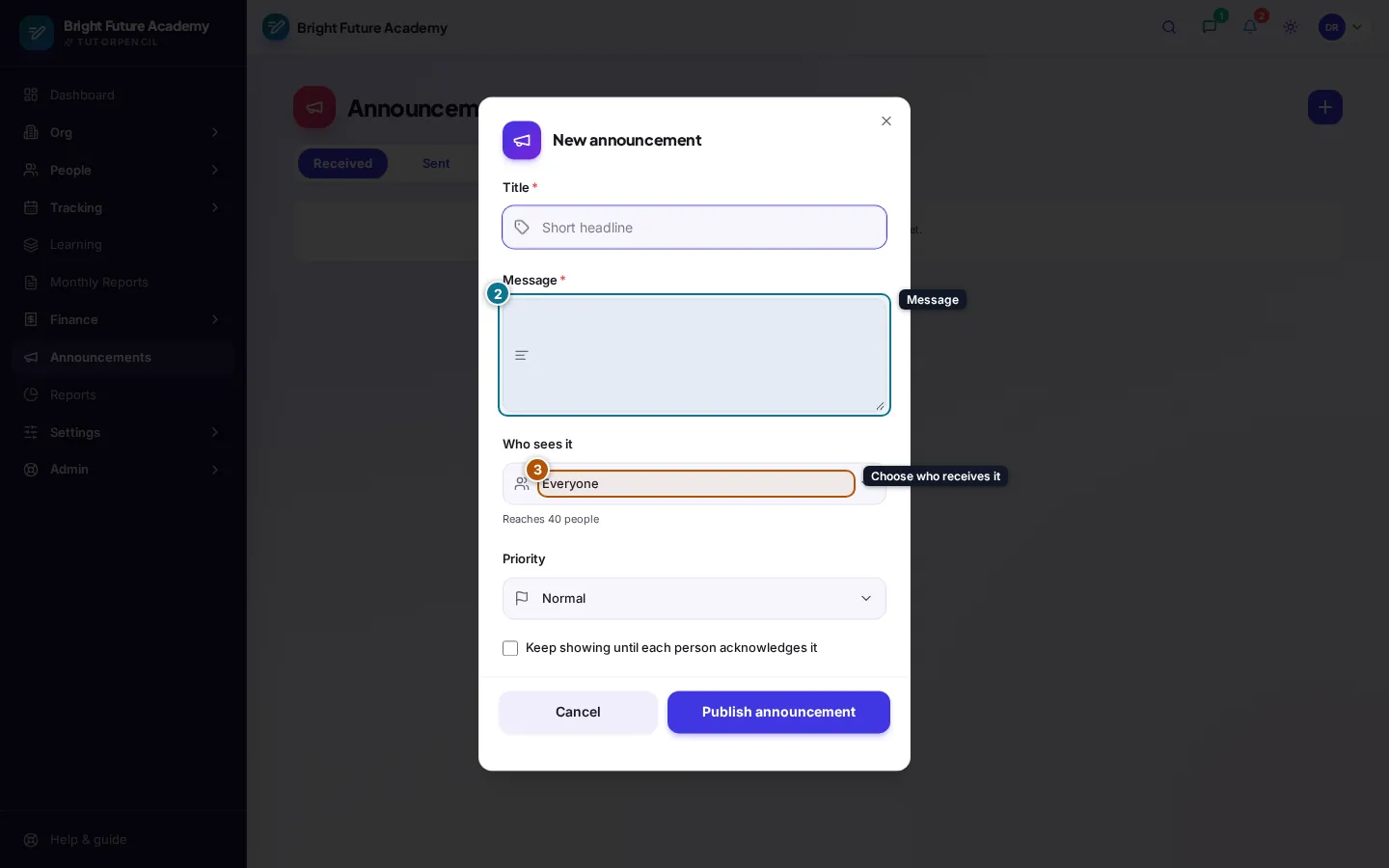
- Write the Title (a short headline) and the Message.
- Choose Who sees it. The composer shows how many people it will reach — and stops you if nobody would receive it.
- Choose the Priority: Normal, Important or Information. Tick Keep showing until each person acknowledges it for notices everyone must read.
- Publish.
How it works
An announcement goes to the people you choose — everyone, chosen roles, batches or individual people. Recipients see it in Announcements and the bell, and important ones pop up when they open the app.
Owners and admins have two tabs: Received (announcements sent to you) and Sent (yours, with how many people each one reached).
Daily use
- Open an announcement to read it in a compact card with the institute name and date.
- On the Sent tab, each card shows its audience and "Reached N people".
Troubleshooting & FAQ
It says nobody would receive it — that group has no one yet (for example no parents have joined). Choose another audience. I published the wrong text — open it, correct it or delete it, and publish again if needed.
Related pages: Notifications (the bell)Messages (chat)Academic planner & holidays