
The Dashboard is the first screen after you sign in. What it shows depends on your role.
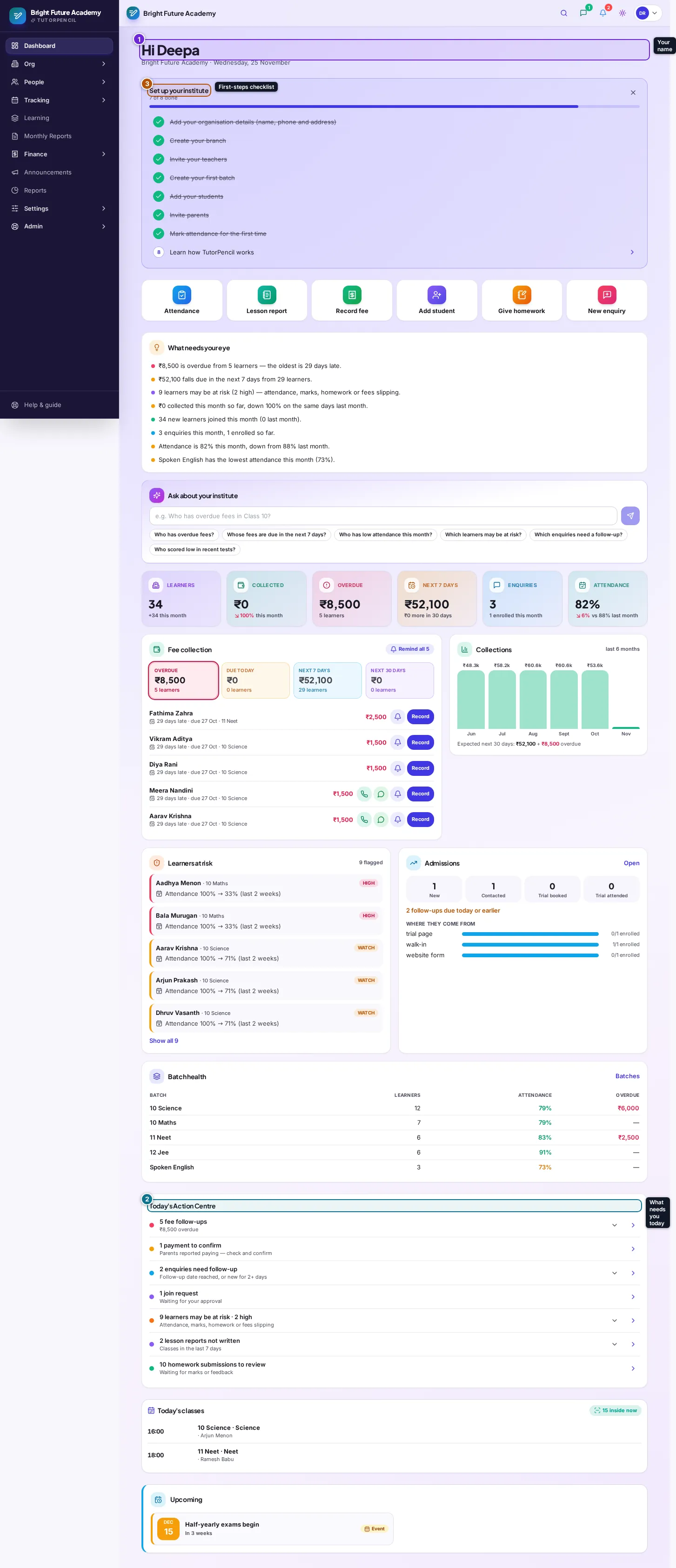
Nothing to set up. The Dashboard fills itself from your institute's batches, people, attendance and fees. A brand-new institute looks quiet until the first batches and learners are added — follow the Set up your institute checklist.

How it works
- Owners, admins and independent teachers see a business view of the institute: Collections (collected, next 7 days and expected next 30 days), Admissions (enquiries and where they come from), Batch health (learners, attendance and overdue fees per batch), What needs your eye, Learners at risk, a Fee collection list with Call, WhatsApp and Fee reminder, and Ask about your institute — type a question such as "Who has overdue fees in Class 10?". While a new institute is being set up, the Set up your institute checklist appears here too.
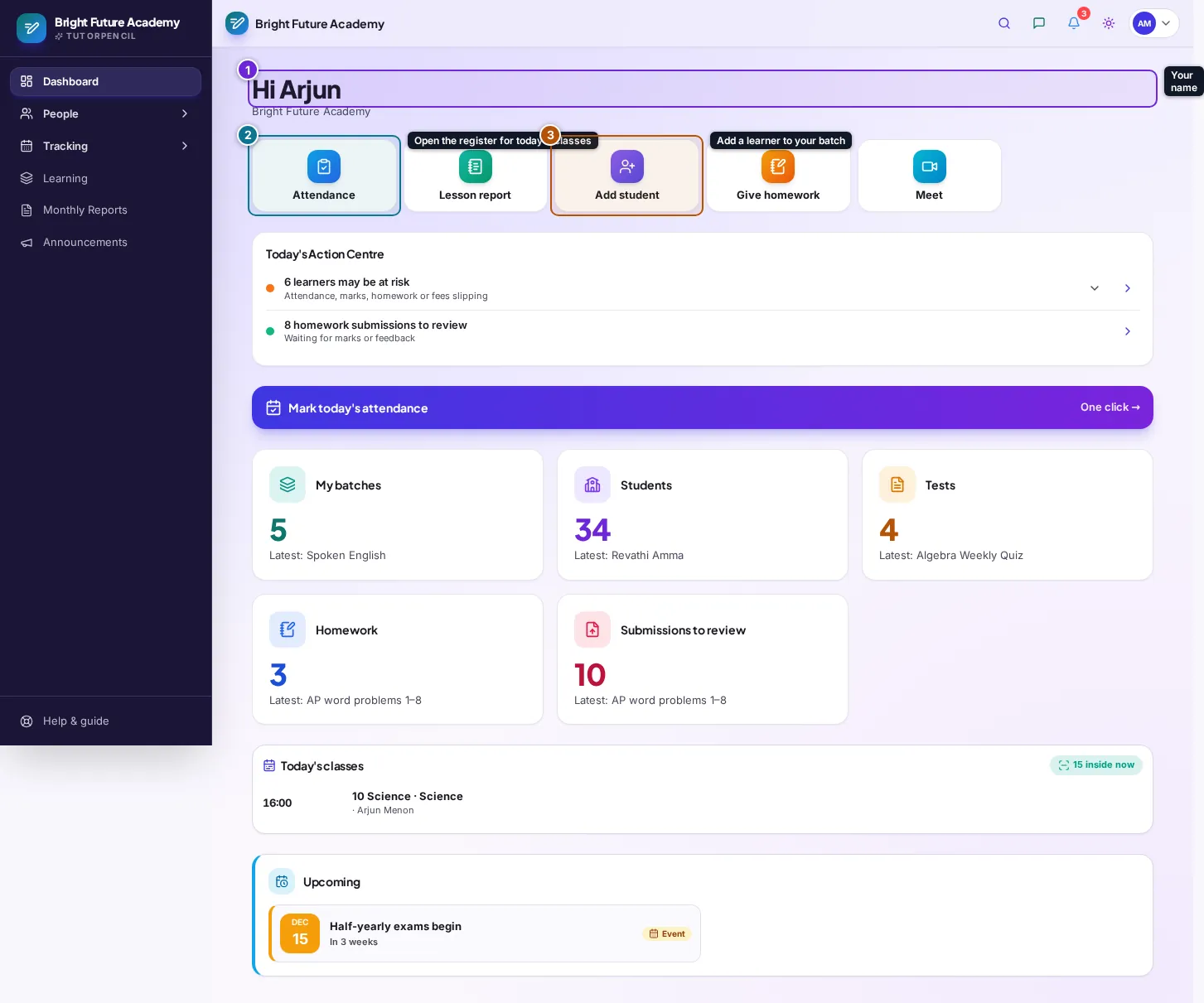
- Teachers see their classes and the work waiting for them, such as attendance and lesson reports.
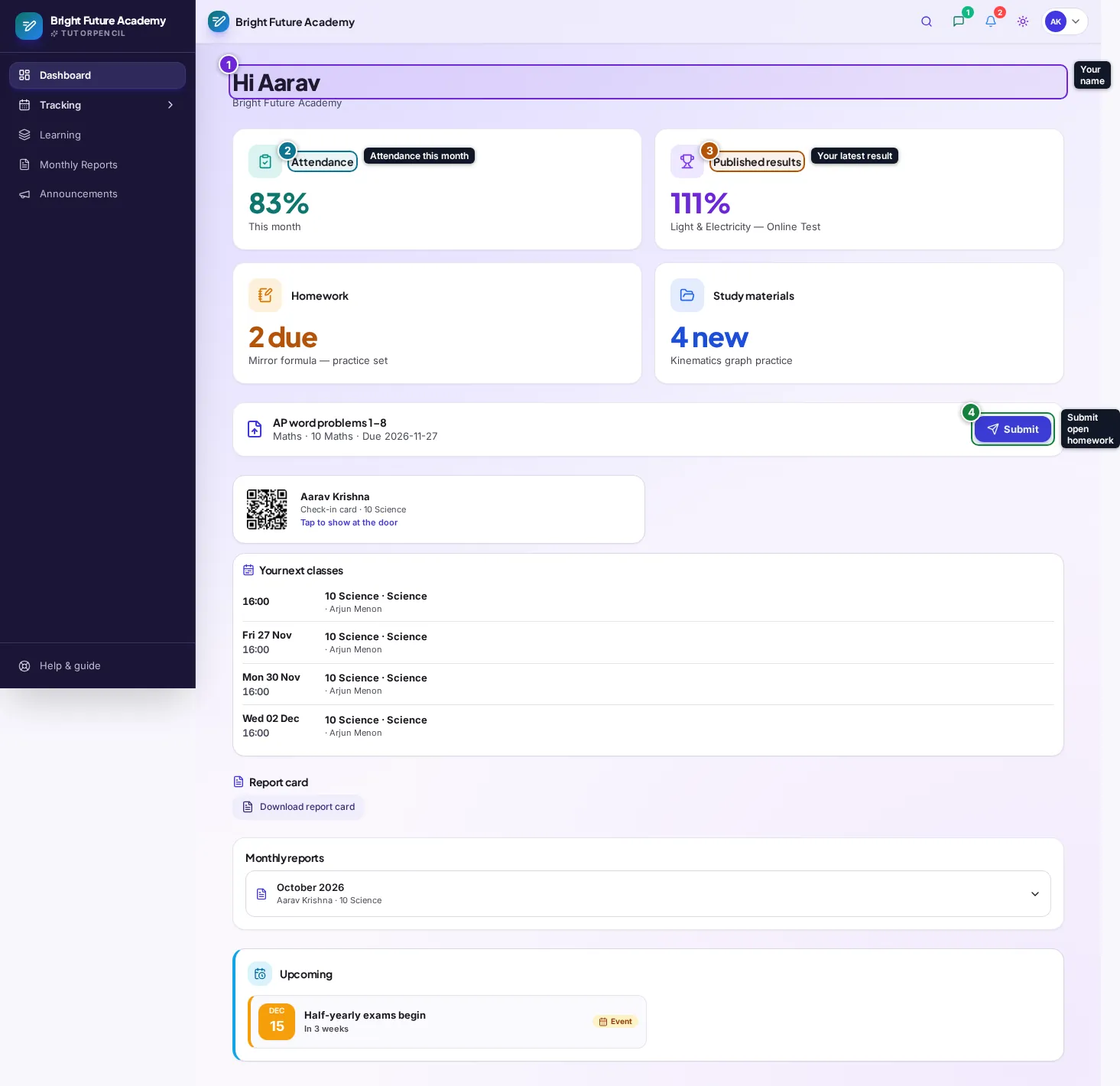
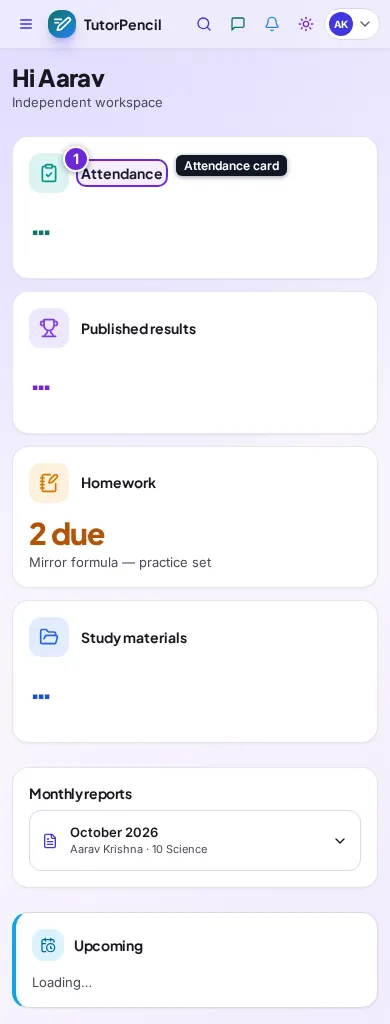
- Students see their classes, homework, results and announcements.
- Parents see each child's attendance, homework, results and fees.
Every card is a shortcut — press it to open the screen where you deal with it.
Daily use
- Staff: start the day here, then press the card for today's classes or anything marked as waiting.
- Parents and students: check homework due, new results and fees in one place.
Troubleshooting & FAQ
A number looks out of date — reload the page; the Dashboard reads fresh data each time it opens. My Dashboard is almost empty — your institute may not have batches, learners or a timetable yet. Finish the Set up your institute checklist.
Related pages: First steps checklistGlobal search