
Every person in an institute has a role, and the role decides which menus they see and what they can change.
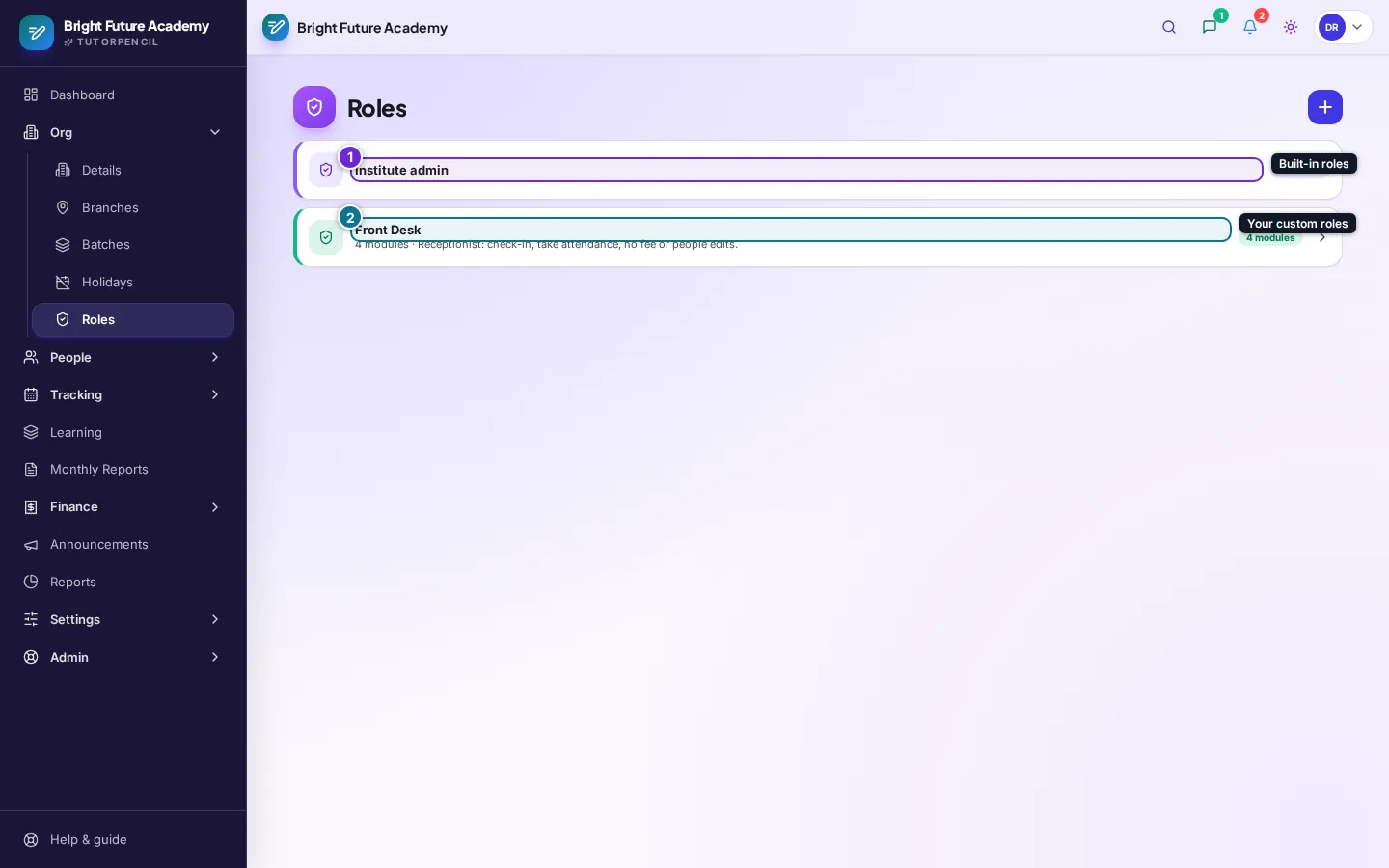
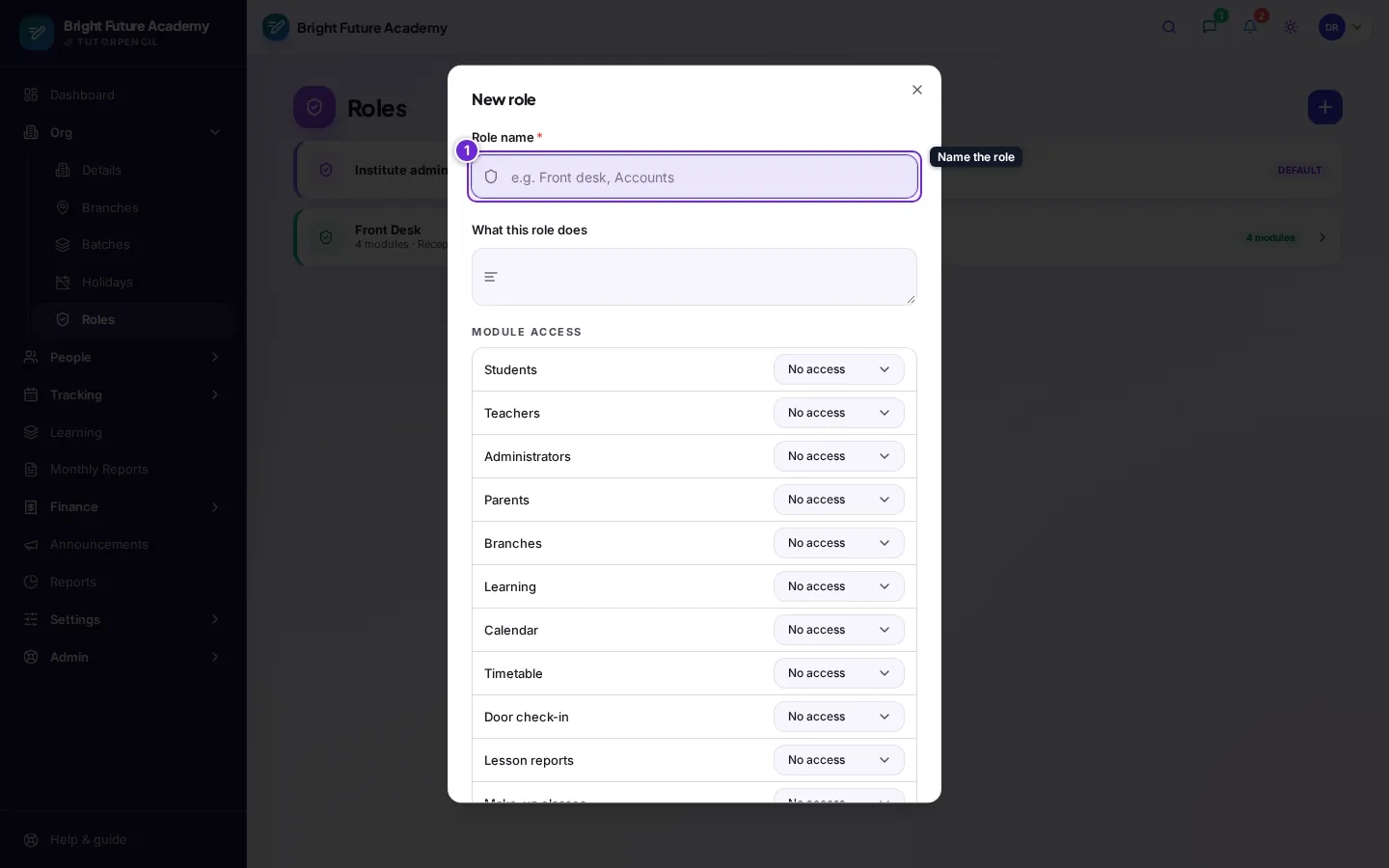
- Open Org → Roles and press New role.
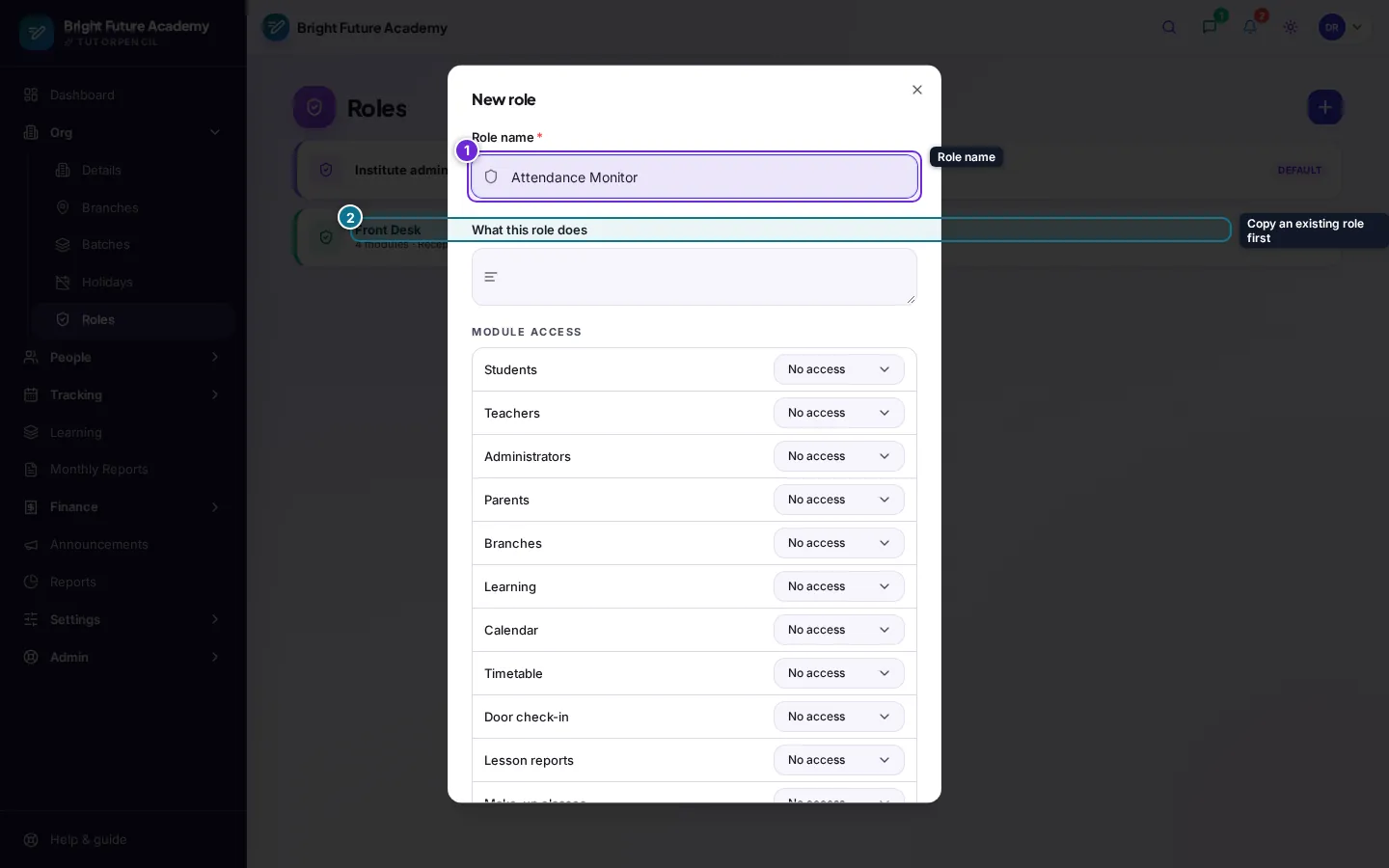
- Name the role (for example "Front desk") and add a short description.
- Choose a level for each module — for example Students: View, Enquiry: Full manage, Attendance: View & edit, Fees: View & edit.
- Save, then open the person in People → Admin (or Teachers) and pick the role.
How it works
The built-in roles are:
- Institute owner — everything, including fees, plan and settings.
- Institute admin — runs the institute day to day: people, batches, attendance, fees and settings.
- Teacher — their own batches: attendance, lesson reports, learning, monthly reports and announcements.
- Independent teacher — a one-person workspace with the owner's tools, without branches or a staff team.
- Student — their own classes, homework, results and announcements.
- Parent — their children's attendance, learning, reports and fees.
Custom roles let you give a teammate exactly what they need. For each module you choose a level: No access, View, View & edit or Full manage. A custom role is given to an admin (or teacher) on their row in People.
Troubleshooting & FAQ
Someone says a menu is missing — check their custom role's level for that module. No access hides the menu. Adding a person fails with "is already … of this institute" — that combination of roles isn't allowed (for example a learner can't also be a teacher). Use a different email for the second role, or change the first one.
Related pages: Teachers and administratorsStudentsParents and guardians