
One person, one login — even if you teach in several institutes or your children study in different batches.
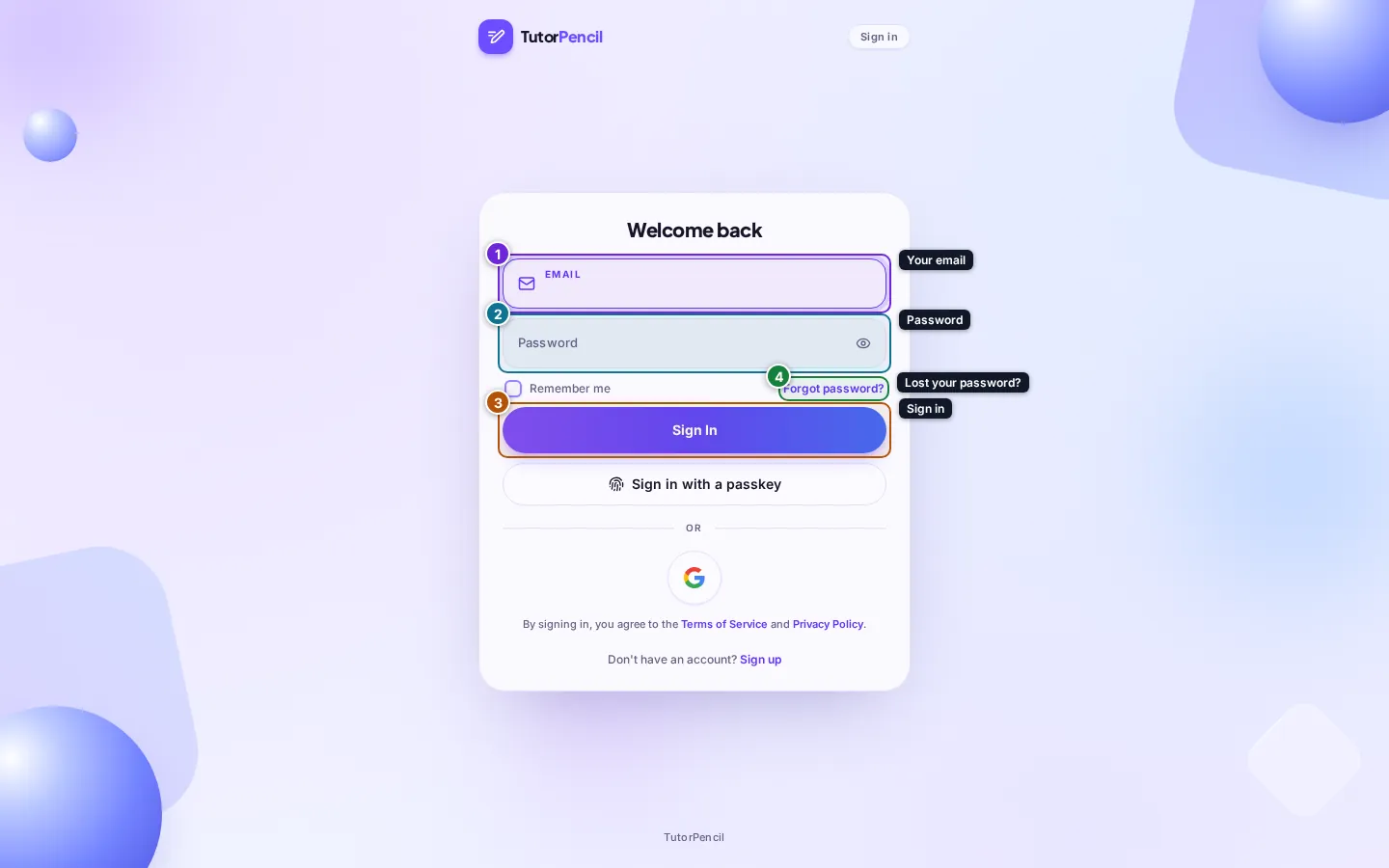
- Open TutorPencil and go to Sign in — the page says Welcome back.
- Enter your Email and Password. Tick Remember me on your own device.
- Or press Continue with Google (shown when the institute's sign-in supports it), or Sign in with a passkey if you added one in your Profile.
- If your account uses two-step sign-in, enter the 6-digit code from your authenticator app.
- You land on your Dashboard. If you have several roles or institutes, switch between them at the top of the app.
Daily use
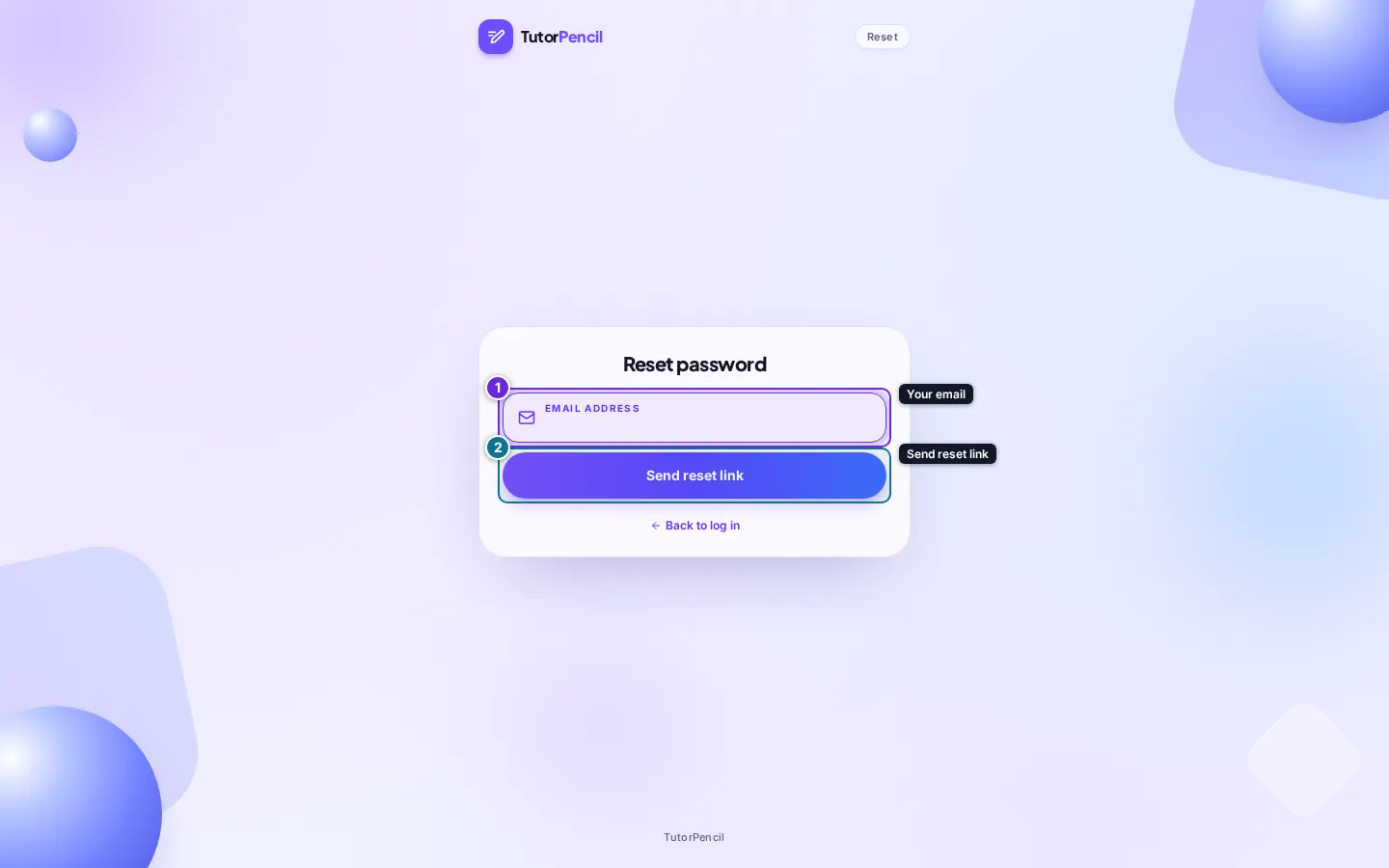
- Forgot password? on the sign-in page opens Reset password. Enter your email and press Send reset link; the email contains a link to set a new password.
- To change your password while signed in, use Profile → Change password.
- To sign out, use Profile → Sign out.
Troubleshooting & FAQ
- The reset email doesn't arrive
- check spam. For safety the page says the same thing whether or not an account exists, so make sure you typed the email you were invited with. My account is locked — wait for the lockout minutes to pass (your institute sets this), then try again or use Forgot password?. I'm signed in but see no institute — you haven't been invited yet, or the invitation hasn't been accepted. See Accept an invitation.
Related pages: Accept an invitationTwo-step sign-in and passkeysSign up and register your institute