
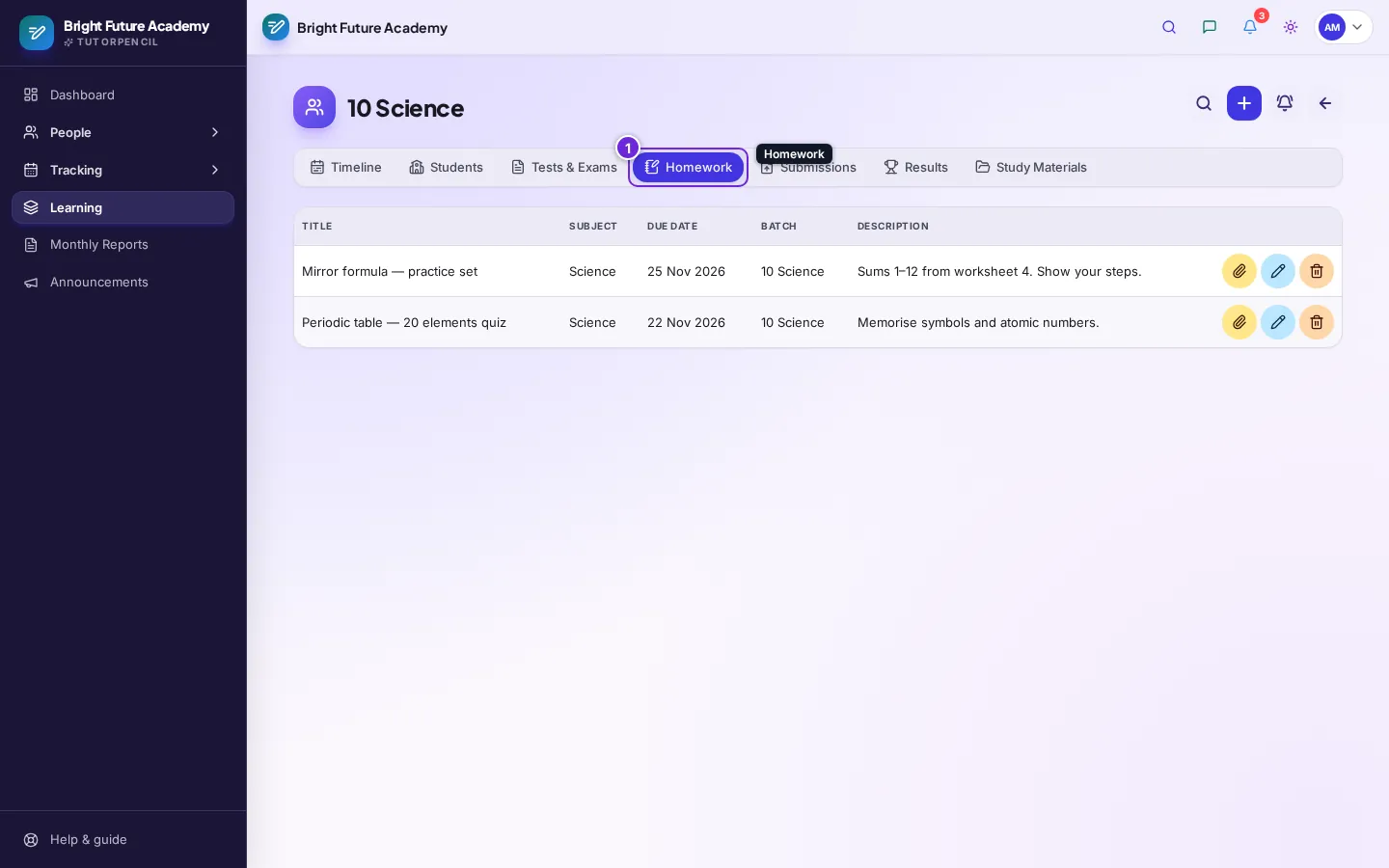
- Teachers: open Learning, pick the batch and add homework (Create homework for this batch).
- Fill Title (optional — the subject is used when it's empty), Subject, Description and the Due date. Attach files or links if you like.
- Save. The homework appears for the batch and on the Academic Planner.
Daily use
- Students: press Submit homework (on the Dashboard or in the batch), write Your answer and/or upload files (photos, PDF, documents), then submit. The teacher is notified. You can change it and submit again with Change my submission.
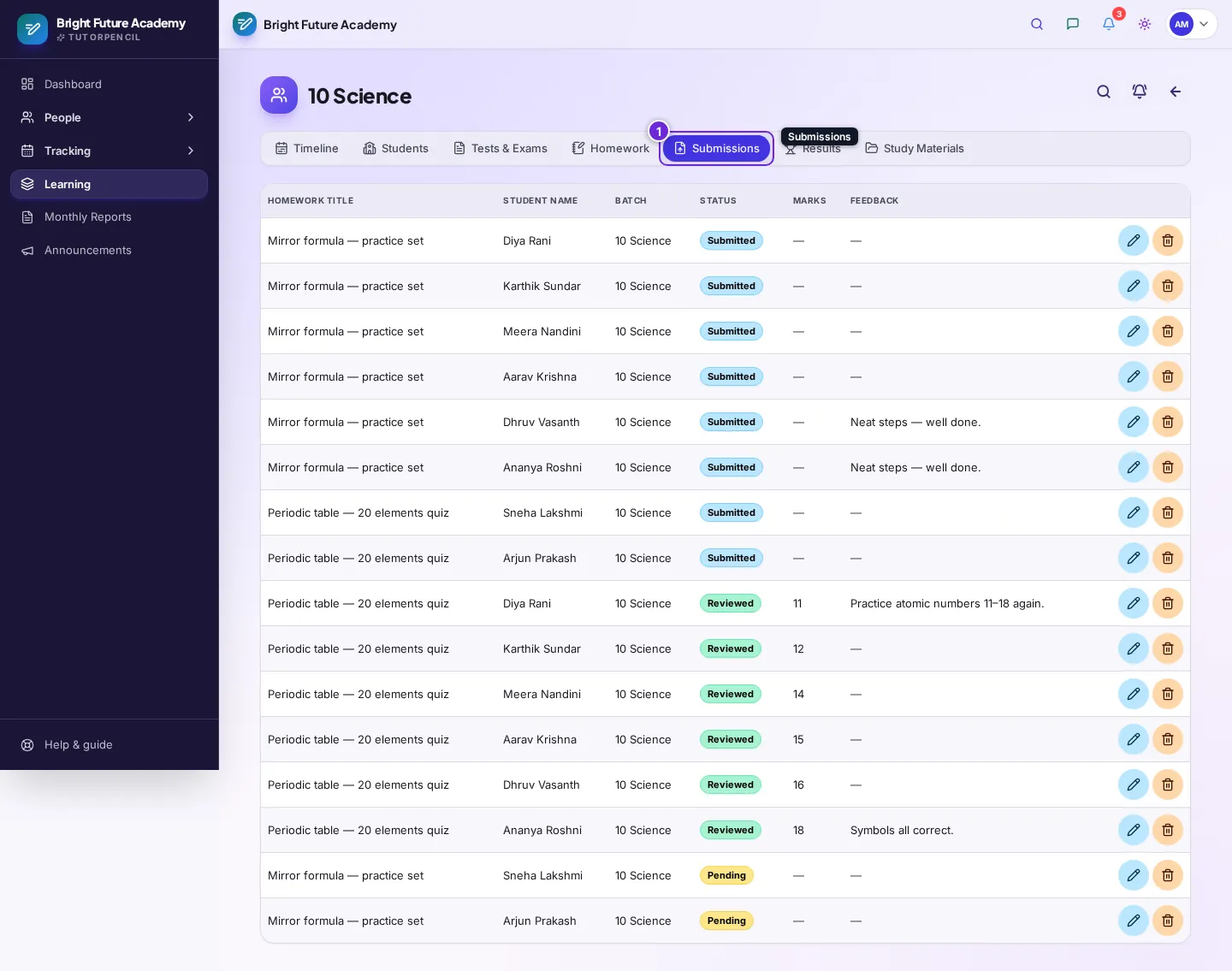
- Teachers: open Submissions, mark each one reviewed and add marks and feedback.
- Parents see their child's homework and whether it was handed in.
Troubleshooting & FAQ
A student can't submit — they must be in that batch; check their batch on the student record. The upload failed — try a smaller file or a photo instead of a scan, then submit again.
Related pages: Lesson reportsLearning — inside a batchStudy materials