
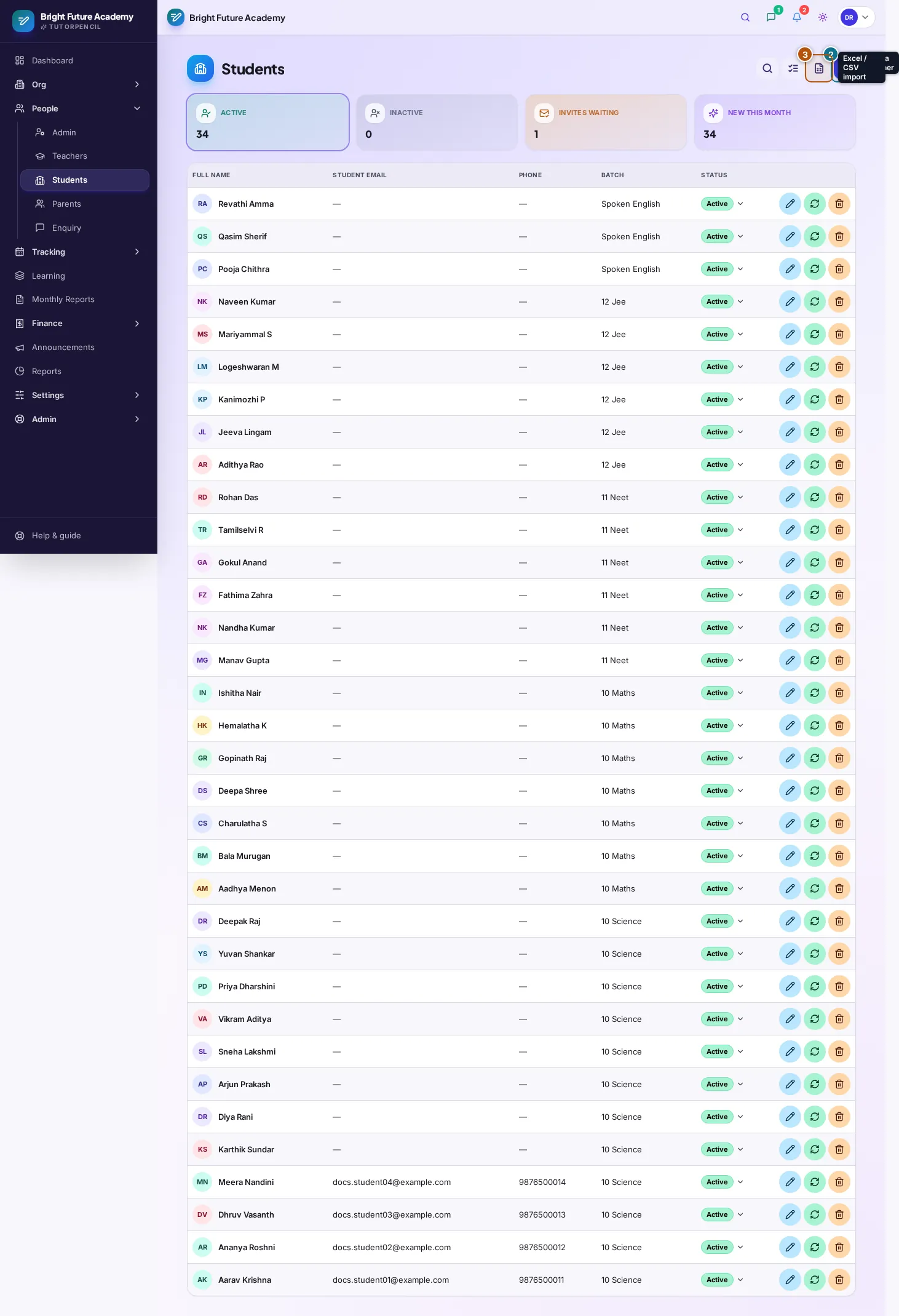
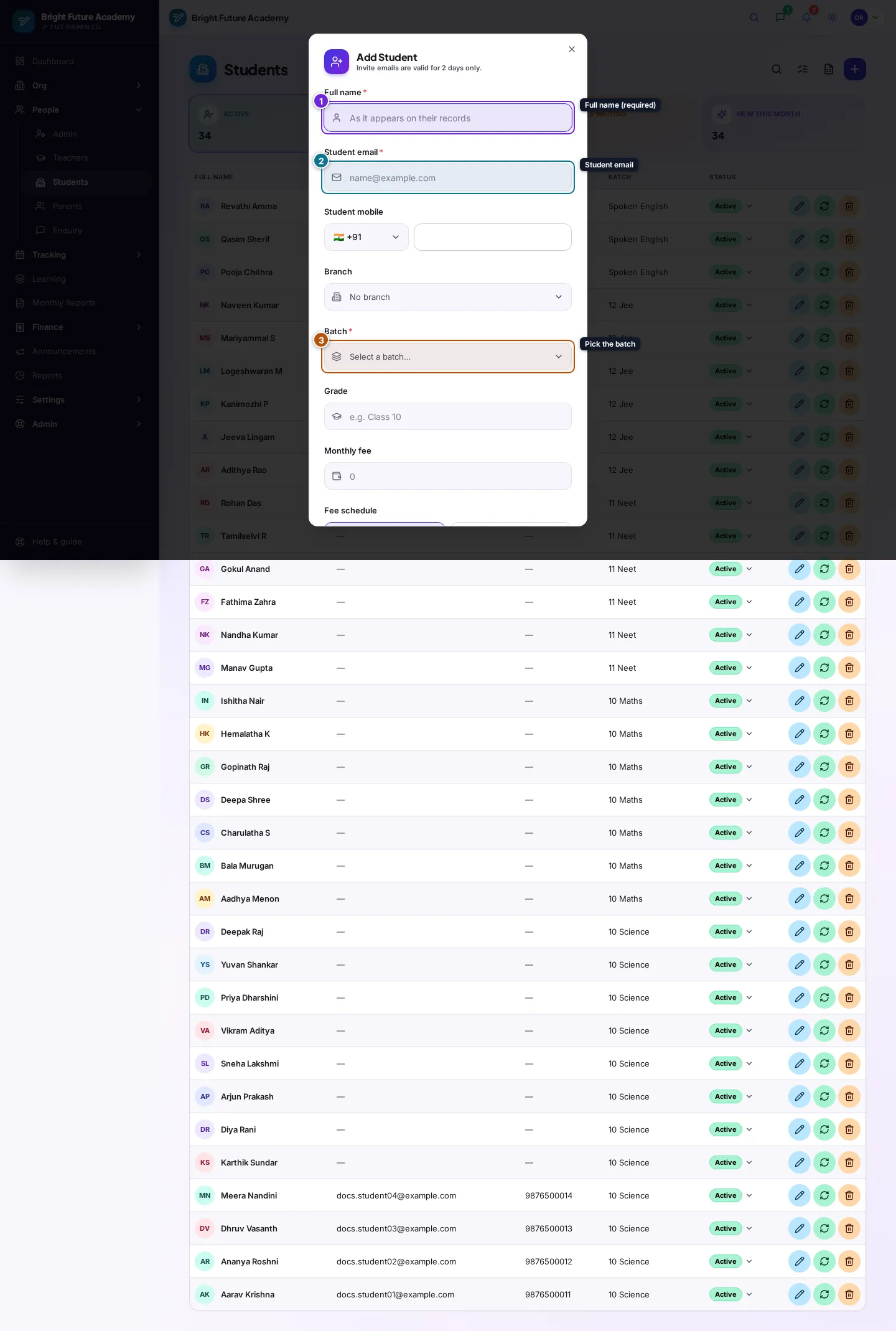
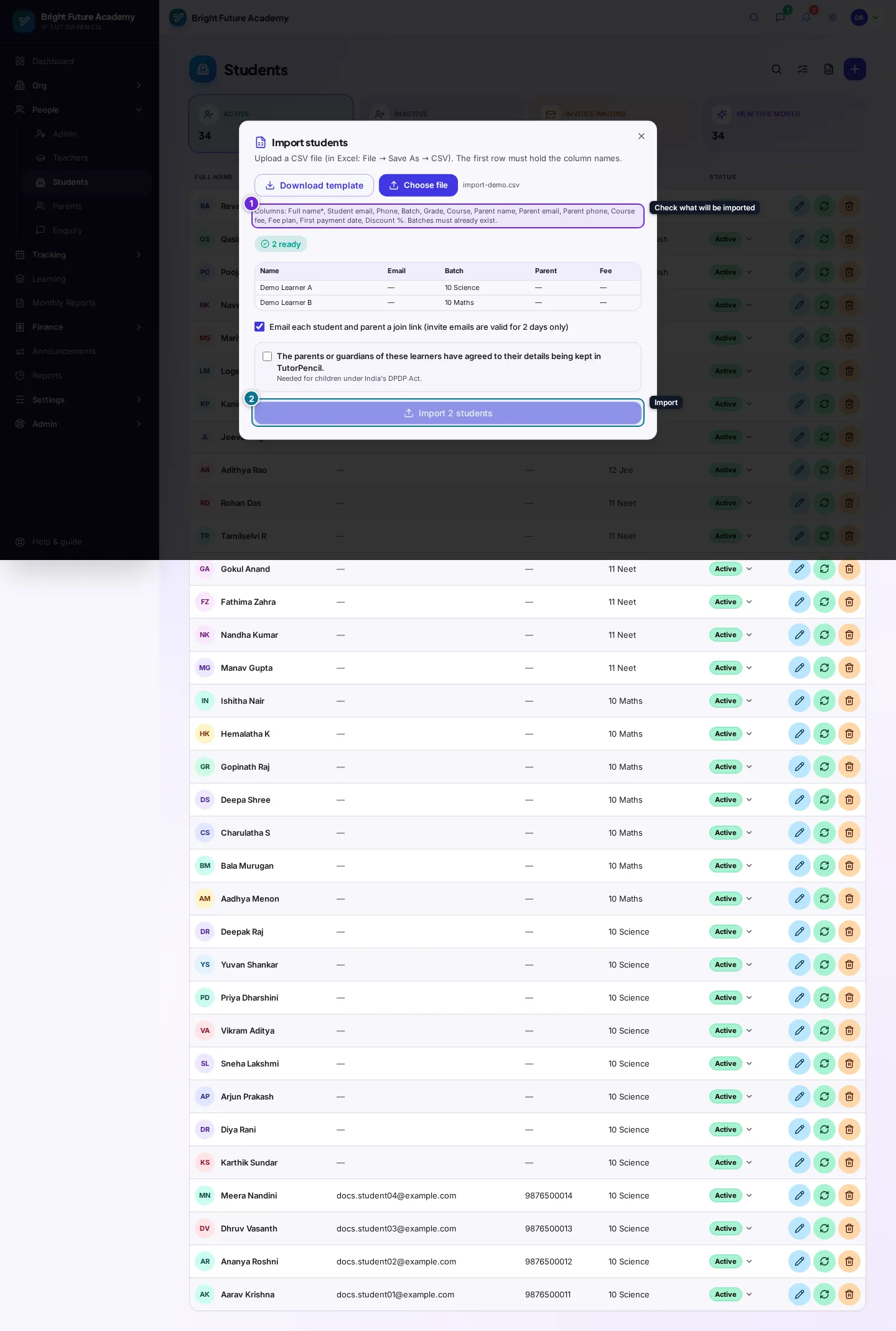
- Open People → Students and press the add button (or Import students for a whole class).
- Fill Full name and email, then the Branch, Batch and Grade.
- Set the fee: Fee schedule, Payment type (One time payment or EMI installments), Discount and First payment date. For EMI, add Course duration (months), Rate of interest and Downpayment.
- Add the Parent email, Parent / guardian name and Parent mobile so the parent gets their own invitation.
- Tick the consent box (needed for children under India's DPDP Act) and save. The invitation is valid for 2 days.
How it works
Each learner has a record with their batch, grade, fee plan and parents. Teachers see the learners in their own batches. Owners and admins see everyone and can change fees.
Daily use
- Use the Active / Inactive tiles to filter the list.
- Bulk actions: pick learners, then Move to batch, Mark inactive, or send a message to their families.
- A young child without their own email can still be a student — their parent signs in and follows them.
Troubleshooting & FAQ
The fee looks wrong after changing batch — check the fee fields on the student record; they're set per learner. The learner never got an invitation — open the Invites tab and press Re-send, or Copy invite link.
Related pages: BatchesParents and guardiansFee plans & schedules